For our advertisement we had to create a poster, due to our polygraph work we did with James I thought using this technique would make this poster more unique as well as adding a retro feel to it.
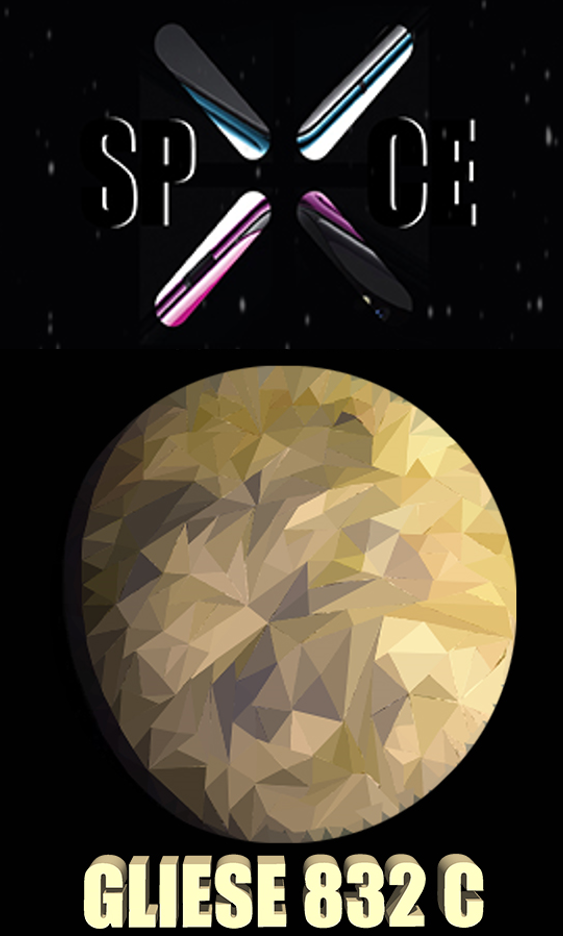
I found an image of Gliese 832 c and used this to create the polygraph planet. I began to use the polygraph method to create the planet, after a quarter of it was done Callum took over as I had to take screenshots of the process for our movie.
There were no problems during this process it just took a bit longer as the triangles around the outline of the planet had to be shorter to make the planet have a smoother edge.
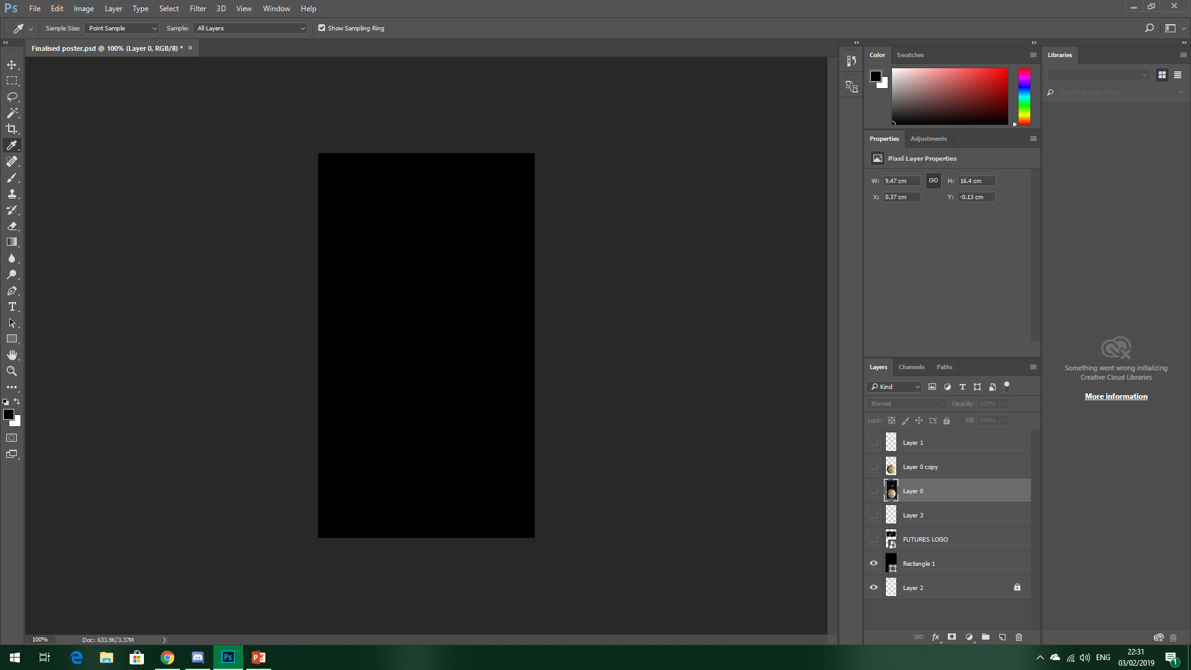
STEP 1
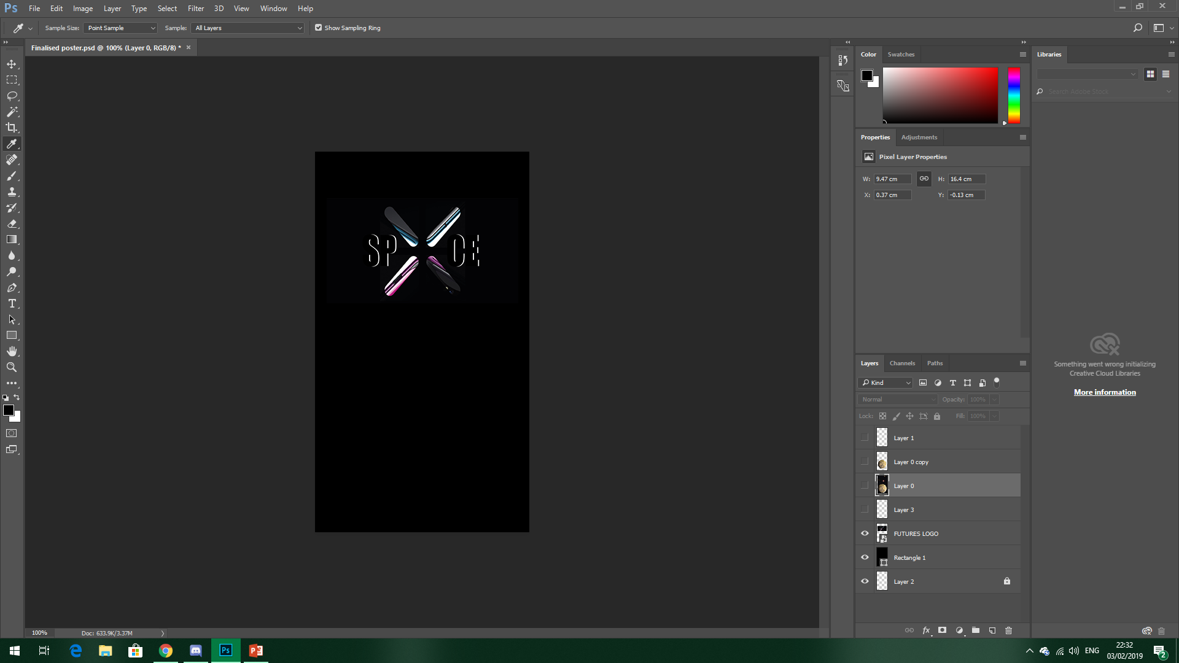
STEP 2
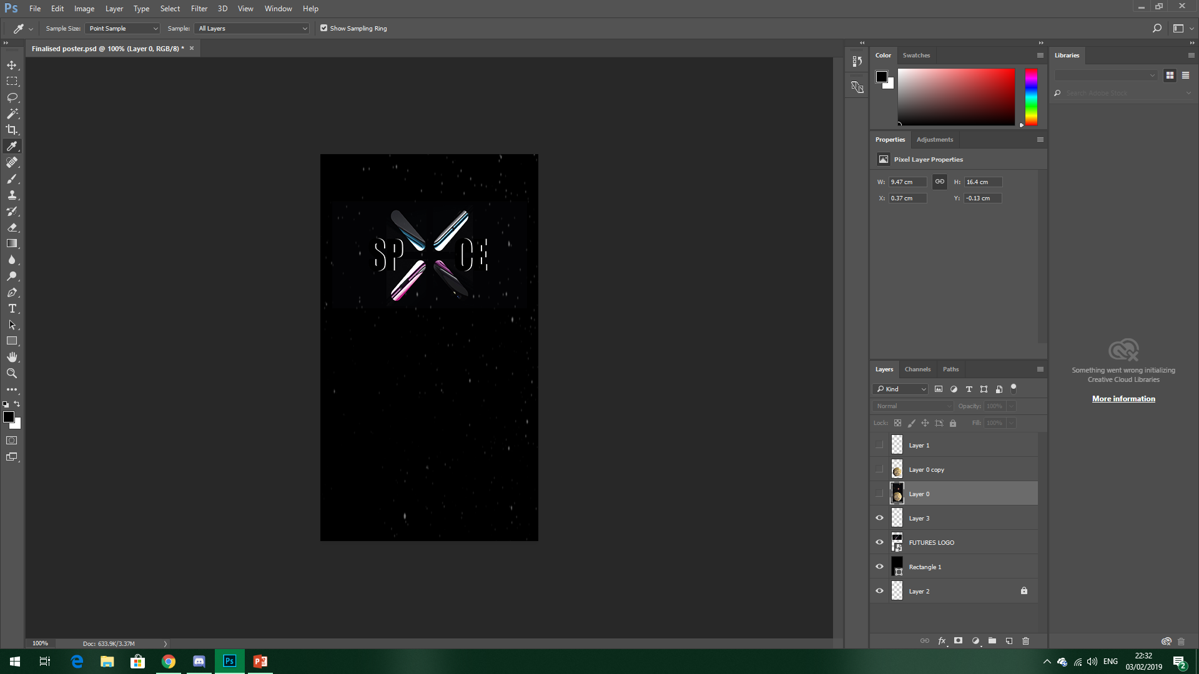
STEP 3
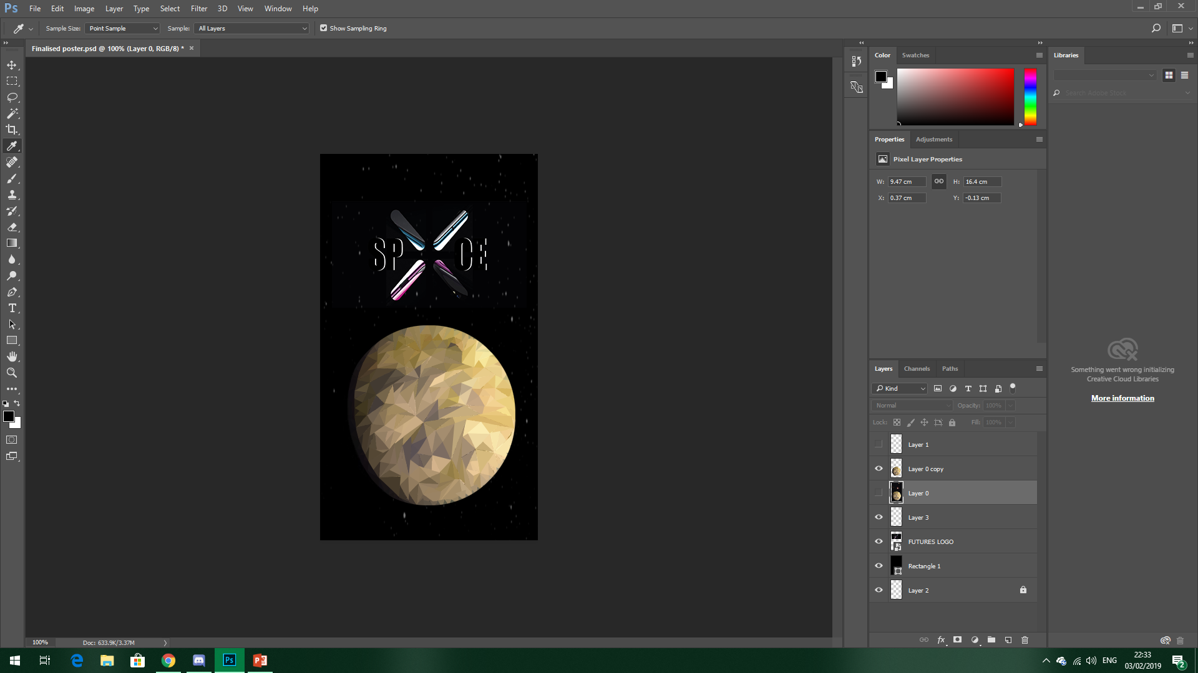
STEP 4
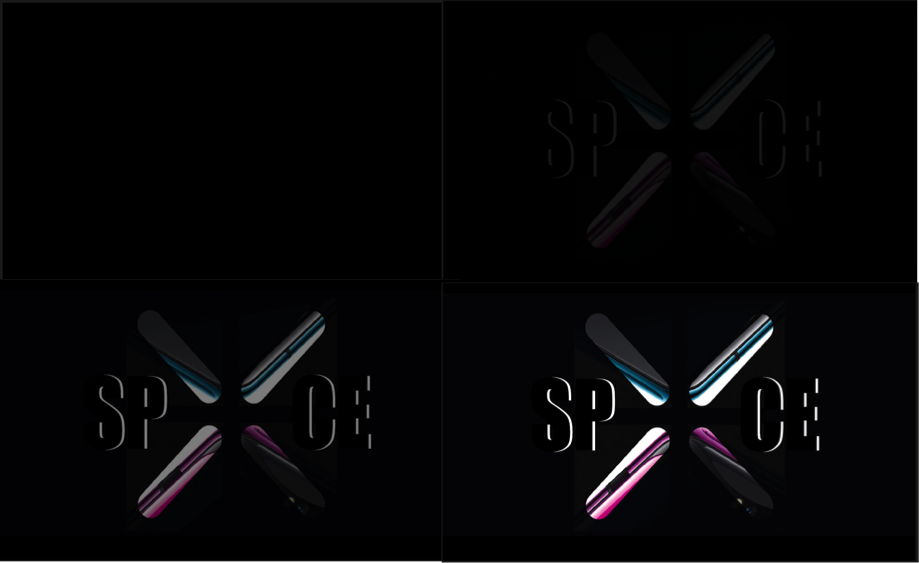
Step 1 – We started with a black background, this is purely because of the background of the ‘X’.
Step 2 – Callum added the SPXCE logo onto the black background on a separate layer.
Step 3 – Callum then added a stary background as another layer.
Step 4 – I started off the polygraph image of the planet Gliese 832 c by using the shape tool and averaging the colour. Callum continued using this process to finish off the poster.
In the darker areas of the planet, like the shaded areas, we struggled to see the triangles we added in, however Callum increased the brightness so this was not a problem.
OUR FINAL POSTER
Finally Iadded 3D writing of ‘GLIESE 832 C’. We used the droplet tool to use one of the lighter colours on the planet. This completed our poster.
However we did end up facing a problem, Callum was taking screenshots of the process of creating the poster but did not save any of these. Even though he did re take the screenshots this did not include the finished poster. As I didn’t have enough time to do this myself I simply took the image from the end of our advertisement and cropped this on top of the last screenshot of the poster we found.
I am very happy with the poster, its simplicity of the layout with the complexity of the polygraph planet looks great!
We were introduced to another style which perhaps we could incorporate within our posters. A polygraph poster entailed creating triangular shapes over a selected image and averaging out the colours to create a solid overall colour for the selected area.
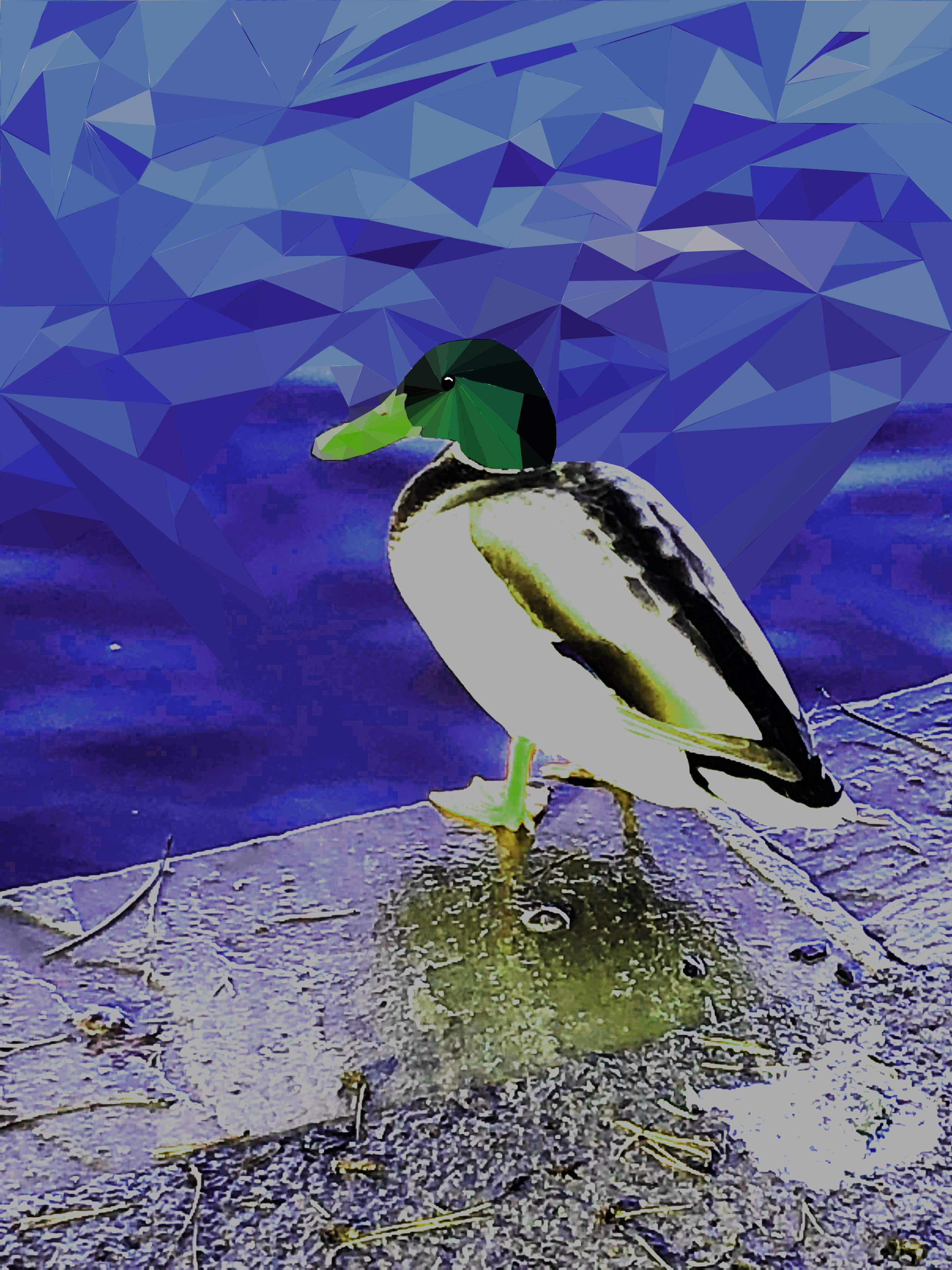
MY PRIMARY IMAGERY OF A DUCK – THE IMAGE I CHOSE FOR MY POLYGRAPH POSTER
This is the image I chose, my plan was to alter the colour of the image to make it more unnatural/’alieny’. I picked this image purely because I think it looks lovely, this is my favourite image that I took while at Sutton Park.
START OF MY POLYGRAPH POSTER
I opened up the image in Photoshop. I used the shape tool to draw my first triangular shape, I then clicked the tab ‘Filter’ at the top, then ‘Blur’ then ‘Average’.Using the average tool would change the shape to a block colour which was the average of the colours within that section. I continued to do this but used the short cut to make the process a lot easier.
As you can see on the picture above, in comparison to the one before it, the colour of the image is a bit more vibrant, it added to the feel of it being a poster for a planet advertisement. I was going to change the colour more instead of it still being their original colours.
This became a problem as I just didn’t end up having enough time to finish it off, my plan was to finish it off while in lesson but the film editing took up all of my time to the point where I just about had enough time to start my blog in lesson. This was purely down to my lack of help with my team members as well as not having access to this software at home.
I wish I had chance to complete this poster to the potential I wanted to complete it in, however I did manage to incorporate this into our planet poster as part of the advertisement.
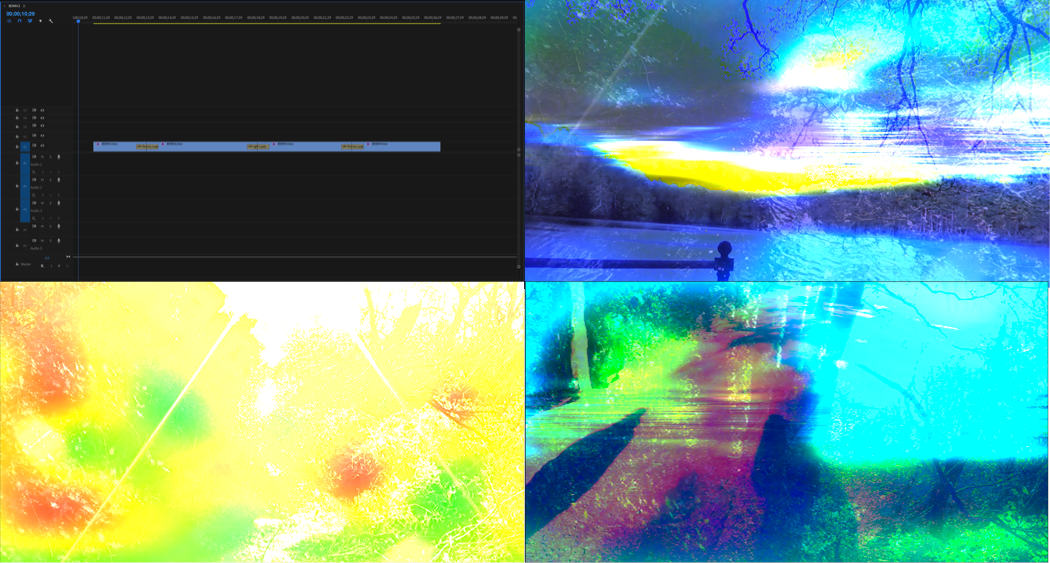
Me and Callum imported our footage onto Premier from external folders, our photos taken in Sutton Coldfield Park primarily as this is the first major bit we needed in the advertisement. After placing the files onto the timeline we trimmed and ordered them. I experimented with different filters – Colour wheels, colour correction and curves to give them an alien feel. It was a group decision on which colour suited each scene best, it was also a group decision for the final clip as it pans upwards, we planned for this to pan upwards into our logo which wasn’t as simple as we planned.We had to import our footage onto Premier
TRANSITIONS
Our next step was to add transitions to the clips. We experimented with different transitions but none of them really fitted well. We then came across VR transitions, we used the VR light leak transition and the VR chroma leak transition. We just experimented with both of these to see which fitted in best with the colour effects we used.
OUR LOGO
In order to advertise our company within the advertisement, we needed a logo. So I found the colourful ‘X’ online and put this onto photoshop and added text ‘SP ‘X’ CE’. I used a basic font and layered black text onto white so only the outline of the letters was visible. We used a generic dissolving transition for the logo so at the end of the last clip it cuts to black and then dissolves into the logo. I think this transition is quite dramatic.
The logo could’ve been more unique however the ‘X’ had a black background and it was very difficult to remove this smoothly, I tried using tools on Photoshop such as the magic wand and quick selection but this didn’t work. Alternatively I tried to get rid of the background using word but this didn’t work either.
POST MALONE BACKING TRACK – ROCKSTAR ON TIMELINE
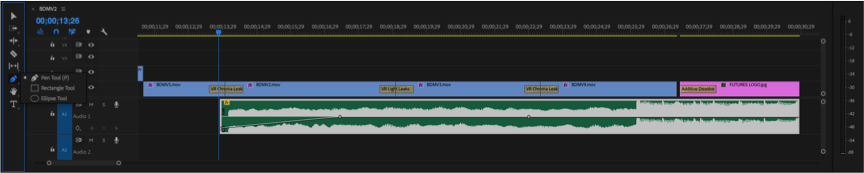
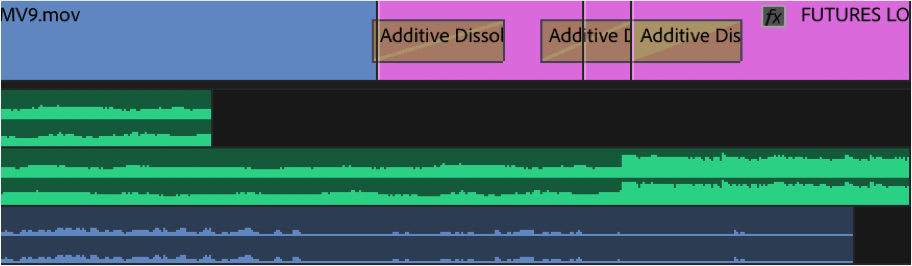
The backing track was something that two people in the team were supposed to work on, but they quickly gave up and me and Callum were listening to our songs to try and see if any fitted the theme or the advert. And we swayed more towards the Post Malone Rockstar backing track. The beat kicks in towards the end which is visible in the audio section, we wanted this to come in towards the section were the logo cuts in. This fitted very well and we were very happy with how well it suited the transition.
TRAVEL THROUGH TIME
As the footage we recorded only took up a fraction of the 30 seconds that the length of the advertisement had to be, we had to brainstorm some ideas of how we could make it longer. This is as we came to the realisation that just having 30 seconds of recorded footage would be boring.
I suggested the idea of doing travel through the years, however this would be an issue as we had no idea how to make it link to the footage we filmed – How would it transition smoothly? How would this link to our footage and planet? Then someone in the group wanted to add aliens using a green screen video on YouTube. But again how would we fit this in with the footage we had?
I then suggested that we do our advertisement a little differently to a regular holiday advertisement. Make it more dramatic and intriguing.
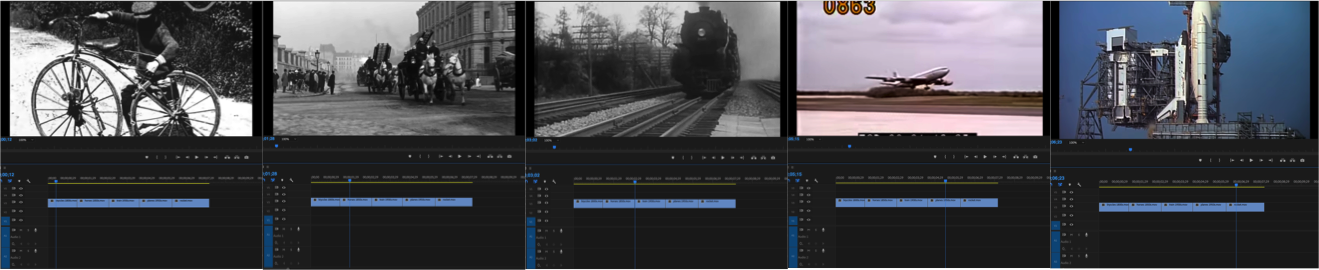
My idea as a whole was that the clips of the transport through the years would be an advertisement in themselves. We would have someone talk about the advancement in the technological advancements of transport and then be unexpectedly interrupted by ‘aliens’. This would then go into the recorded footage, then our logo.
STATIC INTERRUPTION
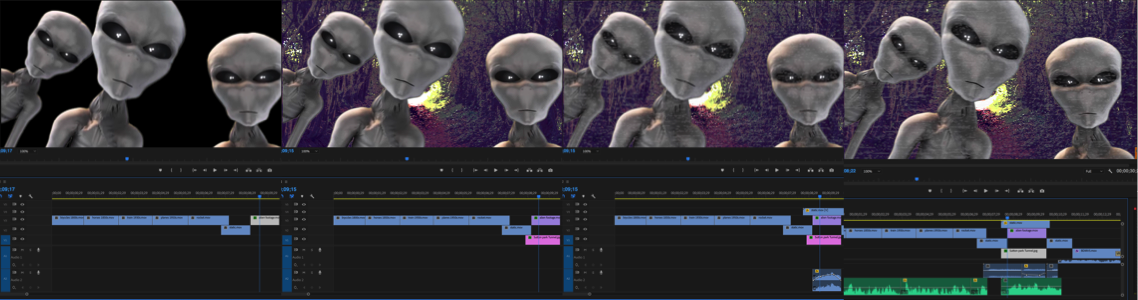
ALIEN GREEN SCREEN
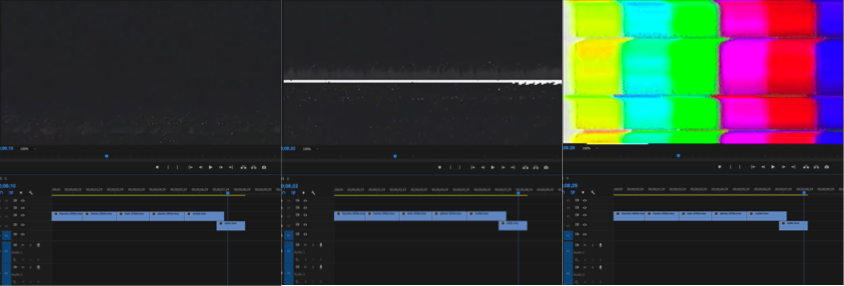
I found some static videos on YouTube along with static audio and put this after the rocket clip as well as before our recorded footage. Joel found an alien green screen and used a photo of Sutton Coldfield park to put behind it that Callum found, unfortunately we couldn’t use any photos we took as the image would become blurry when enlarged. Joel then put this onto the timeline along with the image but left me to make sure the video of the aliens was the actual size of the screen and that the image of the park wasn’t off the one side.
Me and Callum also put the static scene faintly on top of the alien scene as he usggested.
We then added the audio, this would be the speech for the transport scenes at the start of the film as well as some audio for the aliens. This was probably one of the biggest problems we faced.At first we used a text to speech generator but I didn’t think it made the advert look very good, the voice was very robotic and wouldn’t pronounce certain things correctly. We spent a while trying to find a good text to voice generator without noticing the obvious resolution of having someone recording themselves saying the text. This is when we had James record the speech for us, this worked perfectly, a lot better than I expected.
He recorded the following text:
The history of transport is largely one of technological innovation, advances in technology have allowed people to travel further, explore…
WIKIPEDIA
This was the speech for the clips of the transport up until the interference of the aliens, and this is the text he recorded for what the alien says:
Submit, come to Gliece
OUR OWN TEXT
James tried hard and did a very good job at trying to make his voice sound alien like, however we had already planned to use a voice manipulation site to add an eerie echoing effect to his voice. His hard work aided the effect of the manipulation. We were all very impressed with how it sounded.
It took a lot of tweaking the length of the videos and the placement of certain clips to ensure that the length of the advertisement stuck to 30 seconds, as well as everything fitting in with a good amount of time to be shown. Everything fitted perfectly, however we faced another problem.
Upon showing our teacher our completed advertisement we were alerted that maybe people wouldn’t really understand what our advertisement was advertising. With no where to add speech, me and Callum thought it would be a good idea to incorporate our polygraph poster into the advert, the last scene would simply dissolve into this then our logo. This and the fact that I just didn’t think adding more audio would fit in with the advertisement we had already made. The others agreed this was a good idea.
(Our Planets Poster)
EXTRA AUDIO AND IMAGES
We added the following image to advertise our planet:
PART OF OUR PLANET POSTER
Originally the last recorded scene cut off to black and dissolved into the logo, we wanted the same thing to happen with the planet image. Now, the last recorded scene cuts off and dissolves into the planet, then dissolves to black then dissolves into the logo. We had to add in a plain black image between the two or else it would have dissolved straight from the poster to the logo which didn’t look right.
Finally, because we had added the extra imagery, the placement of the beat kicking in on the audio fell sooner than the appearance of the logo so Callum suggested we extend the starter audio to make up the difference. I added the same audio and cropped out the bit where the beat kicks in. I then used the pen tool to lower the volume of when the audio first starts so it blends in without the obviousness of it being extended.
After weeks of hard work, our advertisement was finally complete.
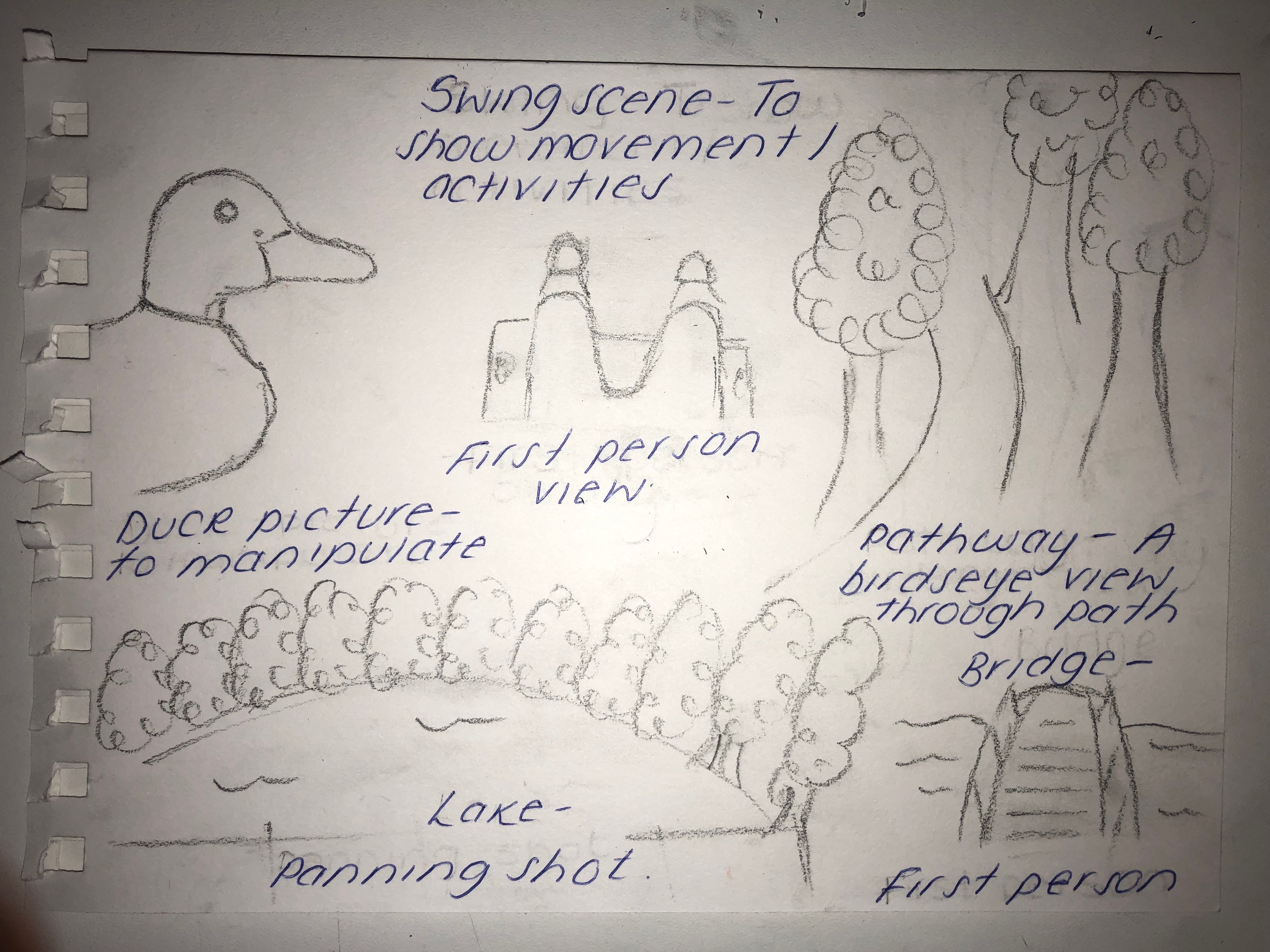
Admittedly, the storyboard isn’t as detailed as I would like it but this is because I accidentally misplaced the original. I chose the main images we wanted to use even though we never got chance to record all of them.
MY STORYBOARD
DUCK – I drew a picture of a duck because my plan was to possibly manipulate this with different colour tools on Photoshop. This would ideally be used for a poster which eventually I did end up using for my polygraph poster.
SWING – We needed a first person positioning for the camera, my idea was to make use of the park and record one of us swinging so just the bottom half of us was in view.
PATHWAY – We needed a panning shot, this was going to be similar to that as we wanted to record us following the pathway. I imagined the footage to be following the pathway where we could then possibly fast forward and slow down some parts to make the advertisement less basic.
LAKE – This was going to be our panning shot, because there is only greenery in the park we wanted to make sure there was some water within the advertisement. This scene did end up being a big part of our advertisement and the manipulation of this was very successful
BRIDGE -We also wanted a bridge scene of us possibly walking over the bridge, unfortunately this wasn’t as easy as we thought due to the limited amount of time and not actually finding something to could class as a bridge as what we found was very small.
Overall our footage went along with our plan very well and I am very happy with how it turned out.
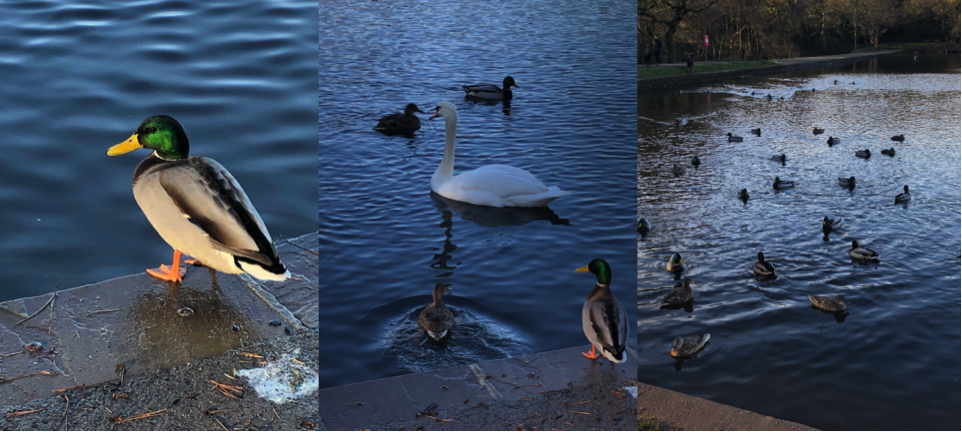
SUTTON COLDFIELD PARK
To be able to create our advertisement we needed footage to put into it. So my group went to Sutton Coldfield Park and recorded and took photos. We had to think thoroughly about what we were going to record so it fitted in with the space theme. This is the footage we took;
With inspiration from the NASA tourism posters we had to create our own space tourism poster to a planet of our choice; I didn’t have an initial idea of a planet to visit, I didn’t have an idea of what to do at all.
I looked at some of the NASA posters again and took inspiration from this poster in particular.
I like the dark colours – the blue and the black, together with the red and horizon of a yellow/orange. The tourists are looking over what looks like a lake with a city view in the background, this is the layout I decided to go with.
So I scanned in my water colour image that I did previously into Photoshop and added a dark red gradient to it. I chose this image as the fade of the blue towards the bottom of the paper looks like a light reflection onto water. Using a red gradient on this was intended to create the reflection of the colour of Mars.
I created this gradient by using the quick mask tool to select the background, which decreases the selected area, so when a gradient is added (red) it then fades out with the fading of the image.
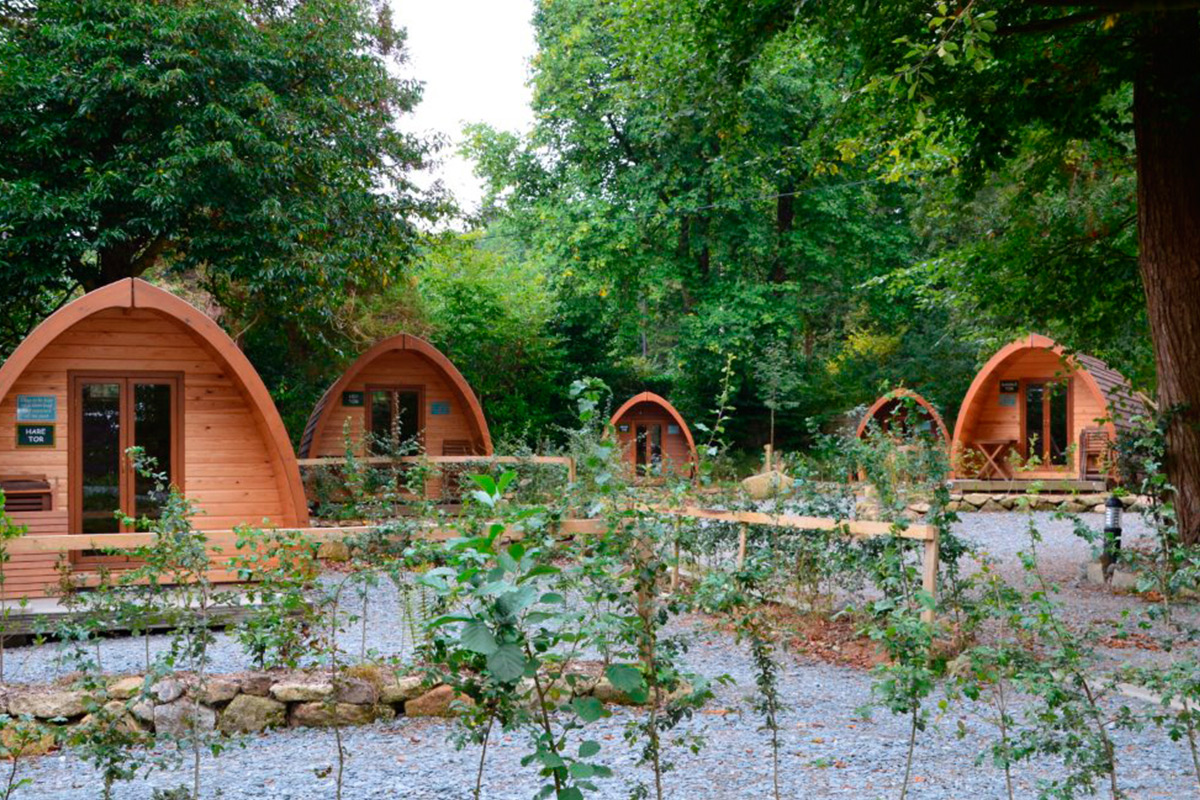
I knew I wanted a landscape to be reflected onto the water, at first I considered a city but I thought this would be too generic. I started to consider different ordinary activities and chose clamping, specifically glamping. This is a more glamorous type of camping. I chose this primarily for the camping huts which have a futuristic shape to them.
GLAMPING HUTS
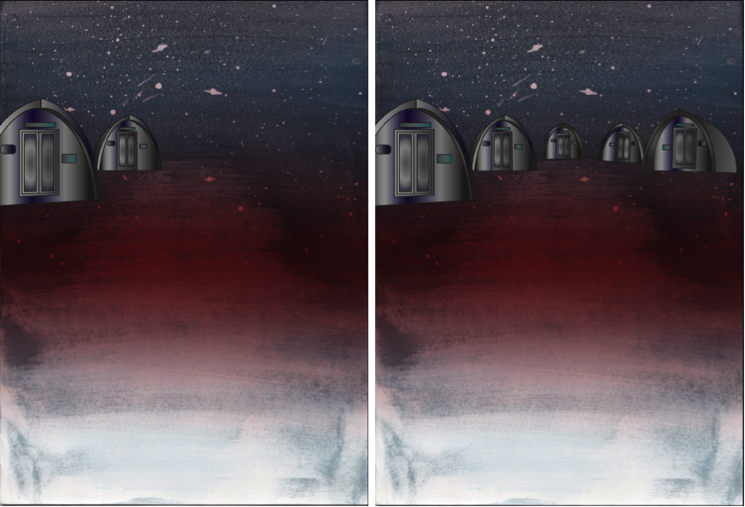
2. I then imported this image into illustrator and used the pen tool to draw around the huts. I used a gradient fill to highlight and dim certain areas.
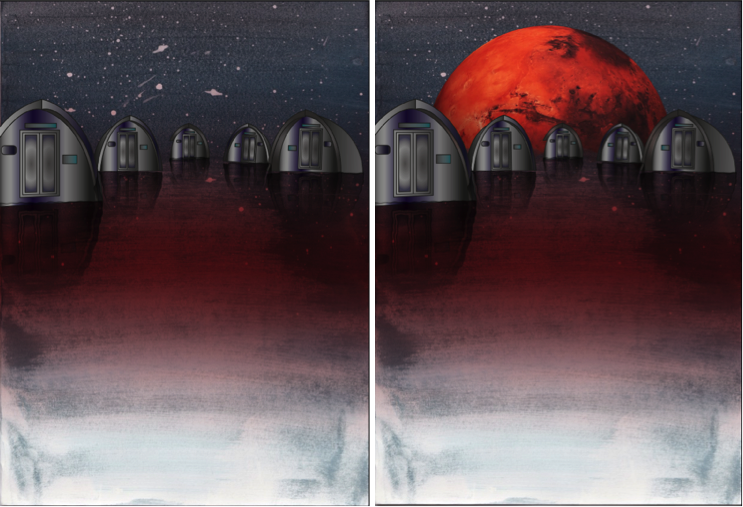
Once I created each hut, I opened what I had made into photoshop. I duplicated each hut individually, flipped them horizontally and clicked ‘filter’,’distort’ then ‘ripple’ to create the ripple effect of the water. I also changed these additional hut layers to have an overlay effect, this faded out the image to make the colours less distinct, like that of a reflection on the water.
3. I then inserted the red planet into the background so in a sense it is what is creating the red reflection in the ‘water’.
4. Finally, I added text to the bottom of the poster:
‘VISIT THE UNDISCOVERED’
Admittedly I did struggle throughout this process in the aspect of technology being a pain. Sometimes not all of what I created pasted, the gradient wasn’t positioning correctly, shapes would cut in half, a lot of basic things that should’ve worked first time didn’t. This wasn’t a major problem but did however slow down the process as I was increasingly becoming impatient.
The only real problem I faced was with the surface, which the huts are placed on. I tried to create a spherical shape with a planet like texture but this looked odd with the water colour having a water effect. And overall with it looking pretty 2D. The only issue I overcame was with the shape of the planet. By adding the Mars planet in the background, this separated the water part of the background with the sky, which made it more distinct and made it look more natural. I still think it looks slightly 2D, I tried to resolve this by adding the ‘ripple’ effect to the background too, its not too obvious in comparison to without it. The surface would still be pretty flat up close anyway and I think overall, it looks great.
REVIEW: POSTER
I used watercolour and explored ways to create refections – Quickmask, vertical flip and blend modes.
Experimentation with colour and typographical layouts
We wanted to experiment with two different types of art; watercolour painting and digital manipulation. But first we had to create the water colour base for our work.
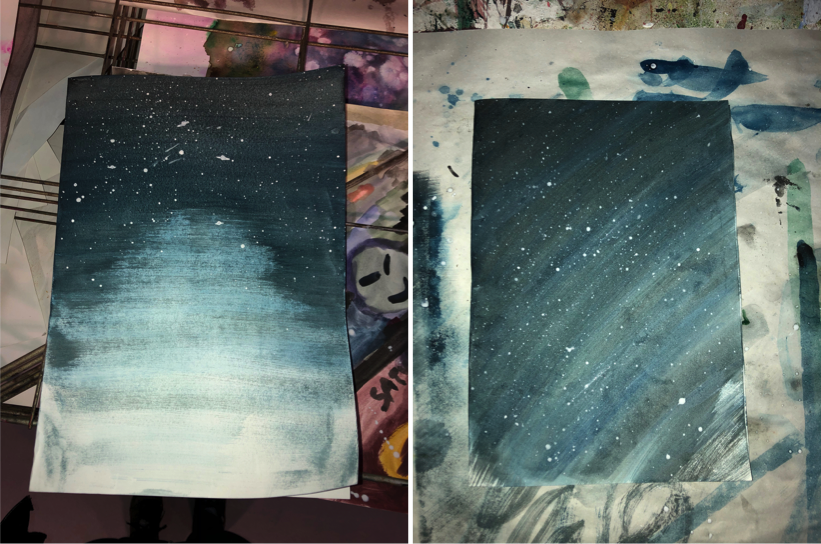
MY WATERCOLOUR WORK
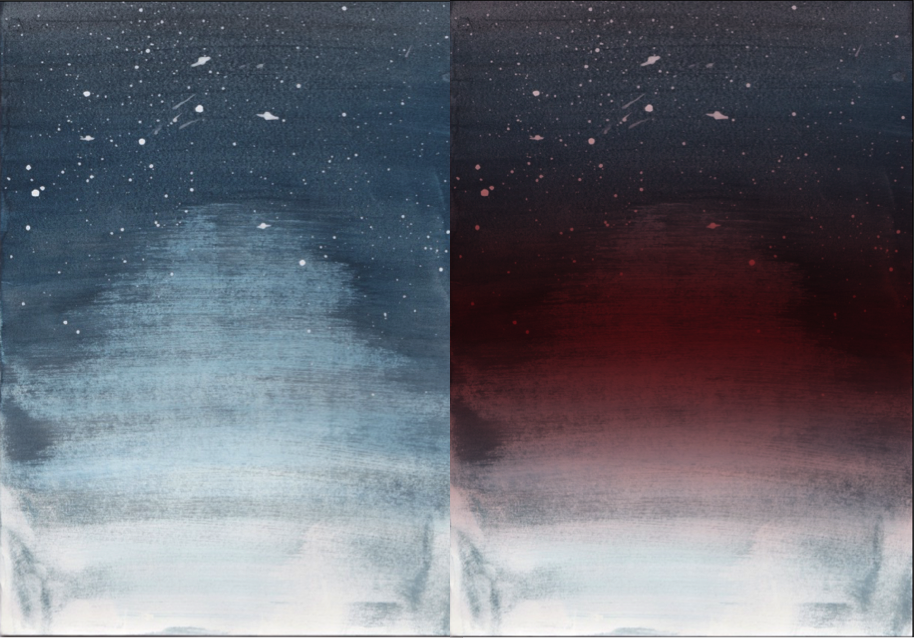
Even though our design was suppose to be more of a watercolour galaxy piece, I attempted to do this 4/5 times but I wasn’t happy with how these turned out. So I went with the aim of creating a sky background. I used the same process for both of these pieces:
1.I spread a thick layer of water over the paper to start with.
2.I then soaked my paintbrush and put paint on it and squeezed this onto a pallet so it was more of an ink. By doing this I can used a wider dry paintbrush and spread the ink over the paper which will gradually fade as the paint runs out.
3.I started at the top of my page with a blue and went over this about 10 times to make the top darker than the bottom to create a gradient effect. I then mixed the blue with a bit of black and went over it a few more times and then iI just used black by itself.
It was purely by coincidence that my first piece faded in the centre of it, creating a gradient effect but something that you’d see on a lake view. I was very pleased with how this turned out as I think the colours and the gradient effect will look great on my poster, especially when the image is manipulated.
I started from a corner with my second image, I think this would work best with a planet in the bottom right corner. This is at it kind of has a roundish effect which would fit well with the shape of the planet.
Overall I am extremely happy with how these both turned out and I am looking forward to what I can create with them once I have scanned them in onto the computer.
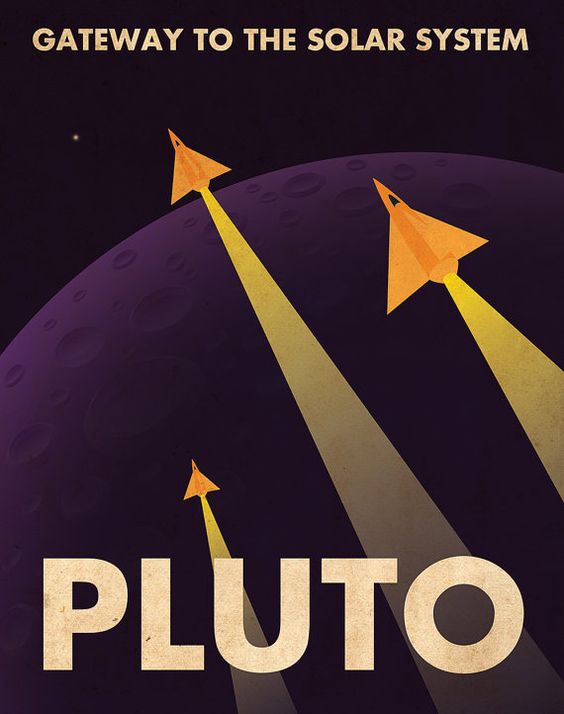
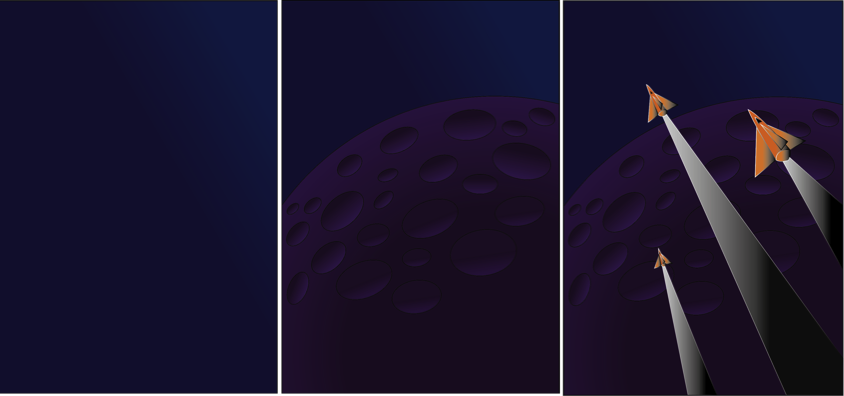
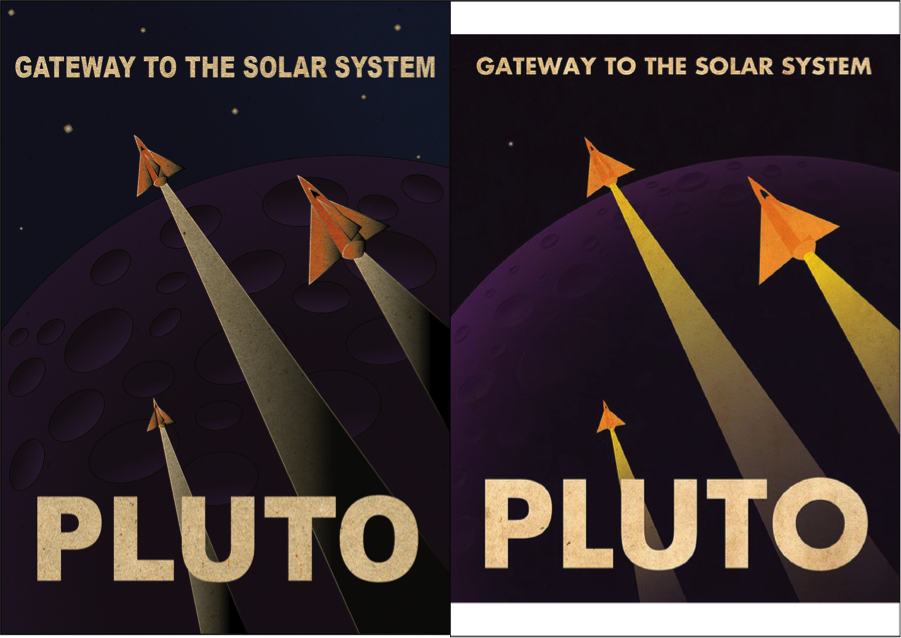
1- I started off by opening a new A4 page and placing the original Pluto poster, and locking this layer, this is so we can use the pen tool to trace around each shape. I then created a second layer which would be the background, I used a dark to light blue gradient to do this as it would be the sky in the final outcome.
2. I then added a third layer in which I used the shape tool to create a circle which would be Pluto. I used a gradient of Dark purple to light purple for this to create the effect of light on the planet. I then created ovals using the shape tool and used the gradient of black to purple to create the 3D effect of the crater.
3. For the rocket, fins and after-burn, I used the pen tool to outline these shapes and then filled the rocket with an orange and black gradient, and the after-burn with a white and black gradient.
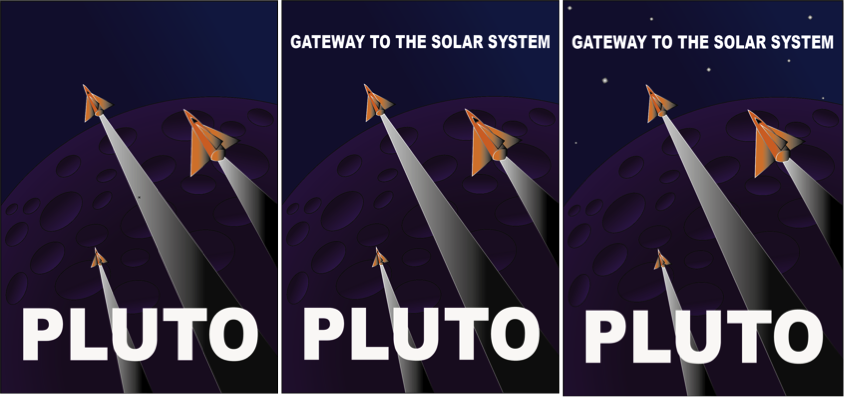
STEP 4 – 6
4. I then inserted the text ‘PLUTO’ and changed the font to Arial Black and made this bold. I then sized this to a similar size to the original.
5. I did the same with the ‘GATEWAY TO THE SOLAR SYSTEM’ .
6. I inserted little square shaped and rotated these slightly, these were filled with a black to white gradient.
FINAL PIECE IN COMPARISON TO ORIGINAL
Finally I inserted a layer to give the poster an old effect. I wanted to make it look rustic and this did the job perfectly.
I am very happy with how this turned out as it looks very alike to the original. The only thing I would like to improve would be the planet. Even though I am very impressed with what I did, I think the shading and effects on the original bring out the planet more as a 3D one than mine does. But for my first try I think i did extremely well.







 FUTURES PROJECT